Shopping Cart

Turn Your Logo Into an Image Placeholder

blog custom image placeholder thumbnail

This quick tip shows you how to use any shape or logo as an image placeholder, and instantly upgrade your PowerPoint layouts

Watch the full step-by-step video tutorial below  

Here’s how to turn your logo or any other shape into a custom image placeholder!

01. Open Slide Master

Go to View → Slide Master to edit the master layout.

02. Insert a Picture Placeholder

From the toolbar, click Insert Placeholder, then choose Picture.
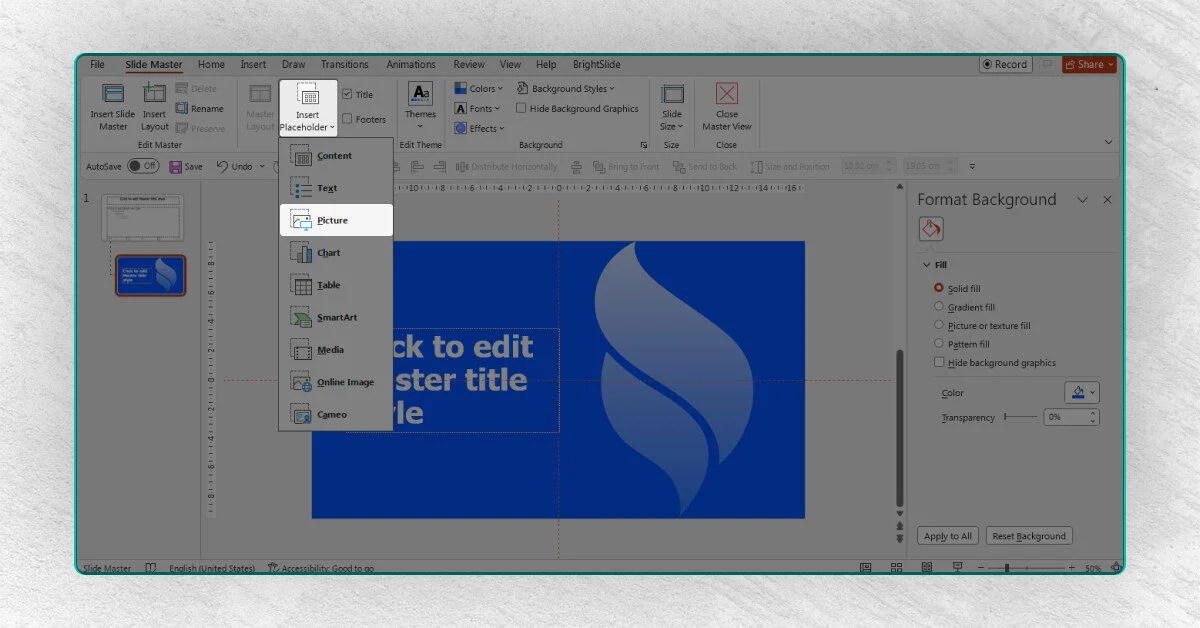
03. Align the Placeholder with Your Shape

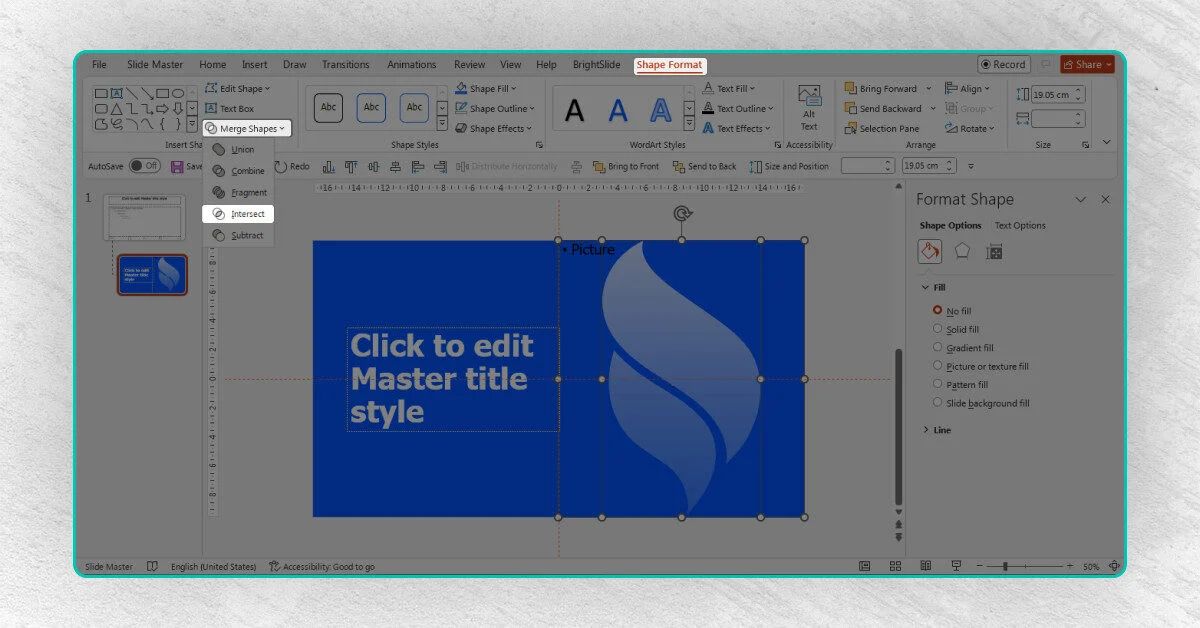
Draw a rectangle large enough to cover your shape and align it perfectly on top of it.

04. Merge the Shapes

Select both the shape and the picture placeholder, then go to
Shape Format → Merge Shapes → Intersect.

Leave a Comment

Shopping Cart
Scroll to Top

This site is protected by reCAPTCHA and the Google

reCAPTCHA Protected by reCAPTCHA
Privacy · Terms

Turn Your Logo Into an Image Placeholder

Turn Your Logo Into an Image Placeholder

  Get full access to all premium templates — Starting from $7.4/month
  View Plans

Category:

JOIN OUR NEWSLETTER

Don’t Miss Out!

Be the first to know about free giveaways, PowerPoint hacks, new releases, and limited-time offers!