Shopping Cart

Slide Master Tips - Font Selection and Embeding

digitals blog 5

If you are sharing your presentations with other people, you need to make sure that your file is ready by doing these simple steps!

Watch the full step-by-step video tutorial below  

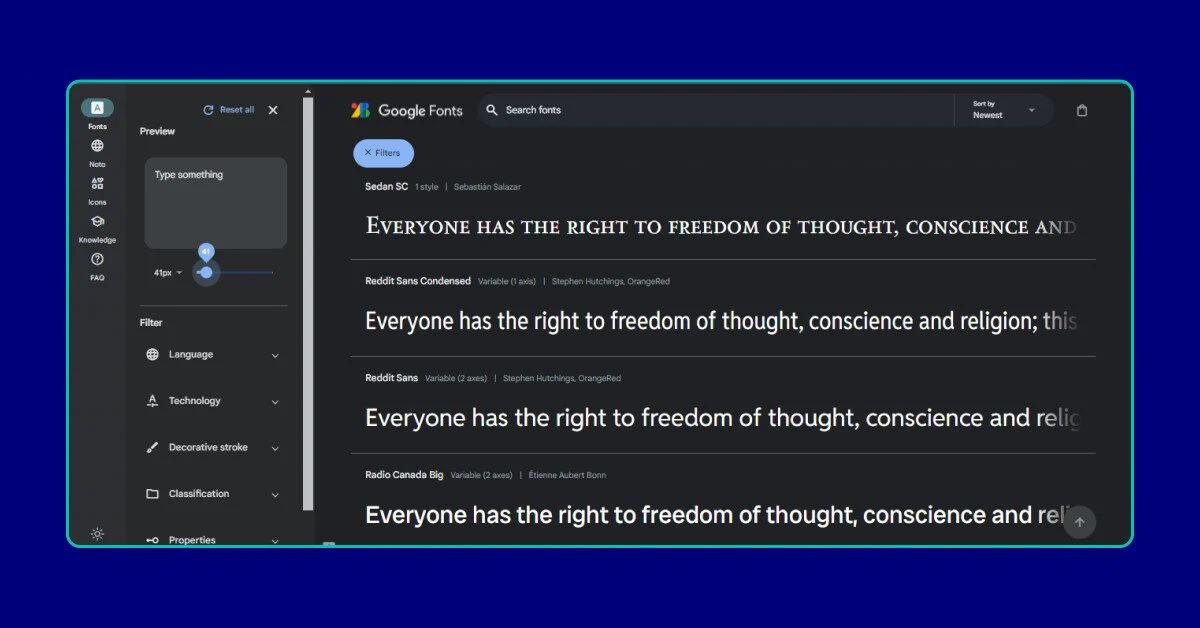
01. choosing the right font!

We love using Google Fonts because it has a rich library of open-source fonts that you can choose from.
02. Make sure to embed your fonts.

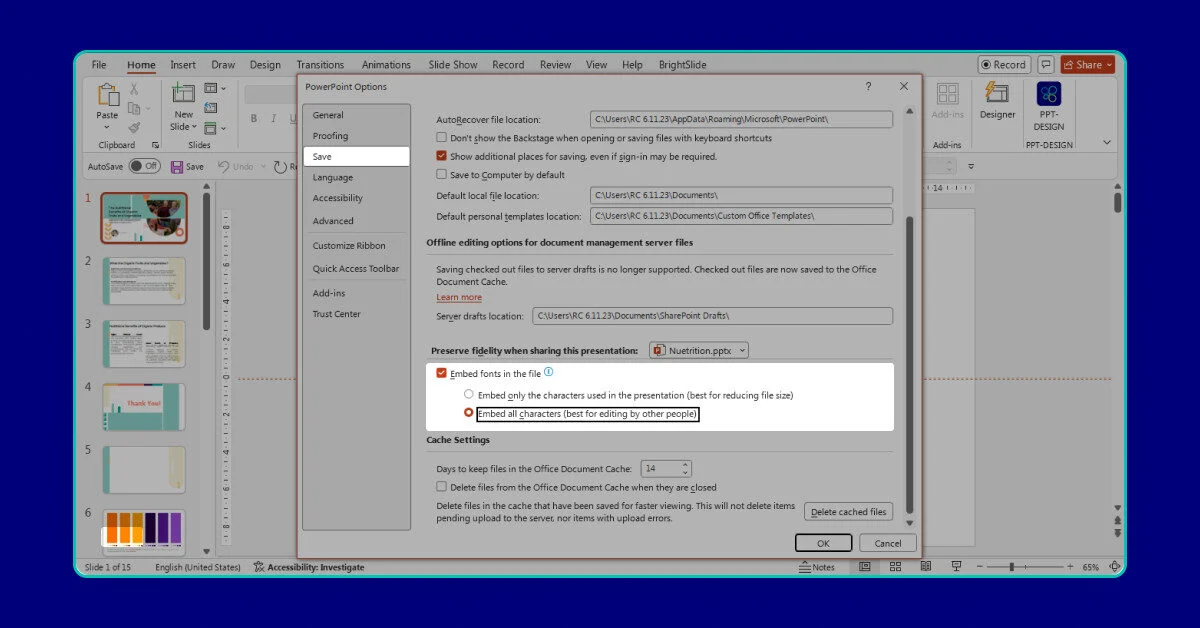
so you can share the file with other people without worrying about any error messages!

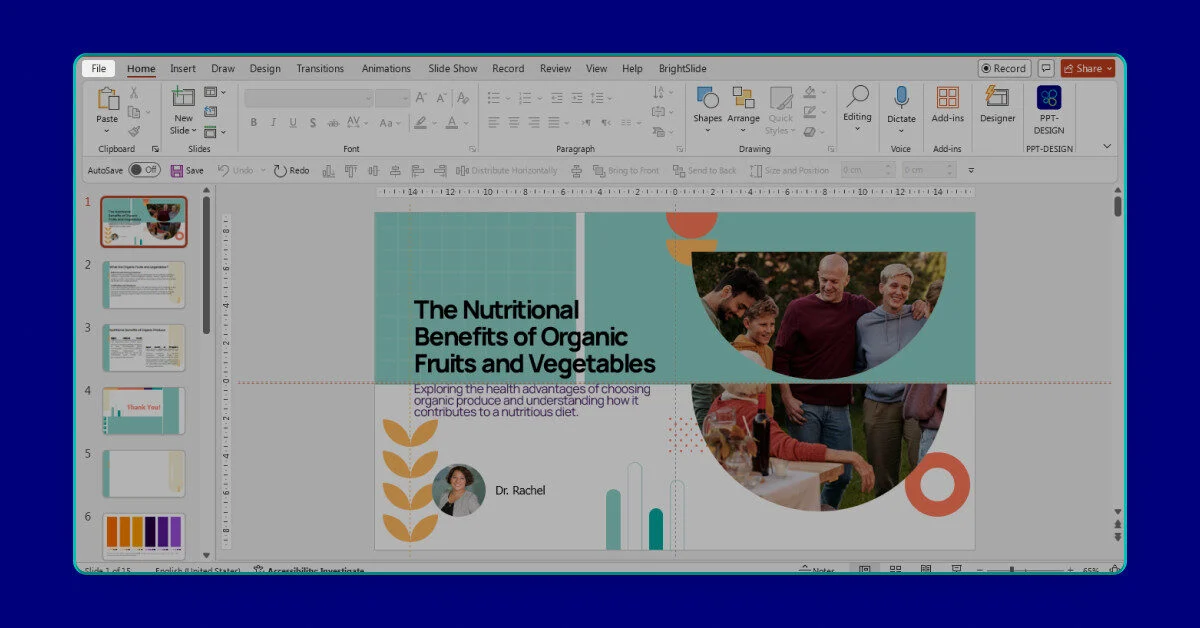
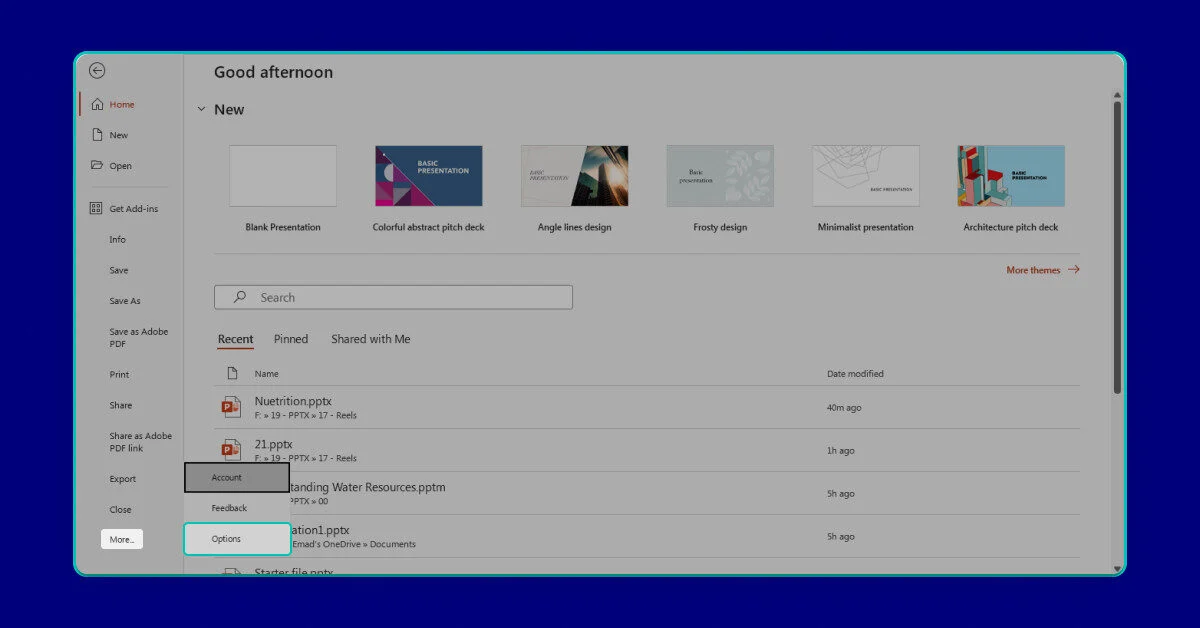
    • Go to “File
    • Click on “More > Options
    • Click on “Save” and check “Embed fonts in this file” and make sure to choose the the “Embed all characters” option

Leave a Comment

Shopping Cart
Scroll to Top

This site is protected by reCAPTCHA and the Google

reCAPTCHA Protected by reCAPTCHA
Privacy · Terms
digitals blog 5

Font Selection and Embeding

  Get full access to all premium templates — Starting from $7.4/month
  View Plans

Category:

JOIN OUR NEWSLETTER

Don’t Miss Out!

Be the first to know about free giveaways, PowerPoint hacks, new releases, and limited-time offers!