- Your cart is empty.
Slide Master Tips - Replace Fonts

Have you ever wrapped up a presentation and when reviewing you found out that there’s this certain font that does not really look good but you don’t want to go and change it manually slide by slide. Here’s how to easily replace in font in your presentations with just a few clicks!
Watch the full step-by-step video tutorial below
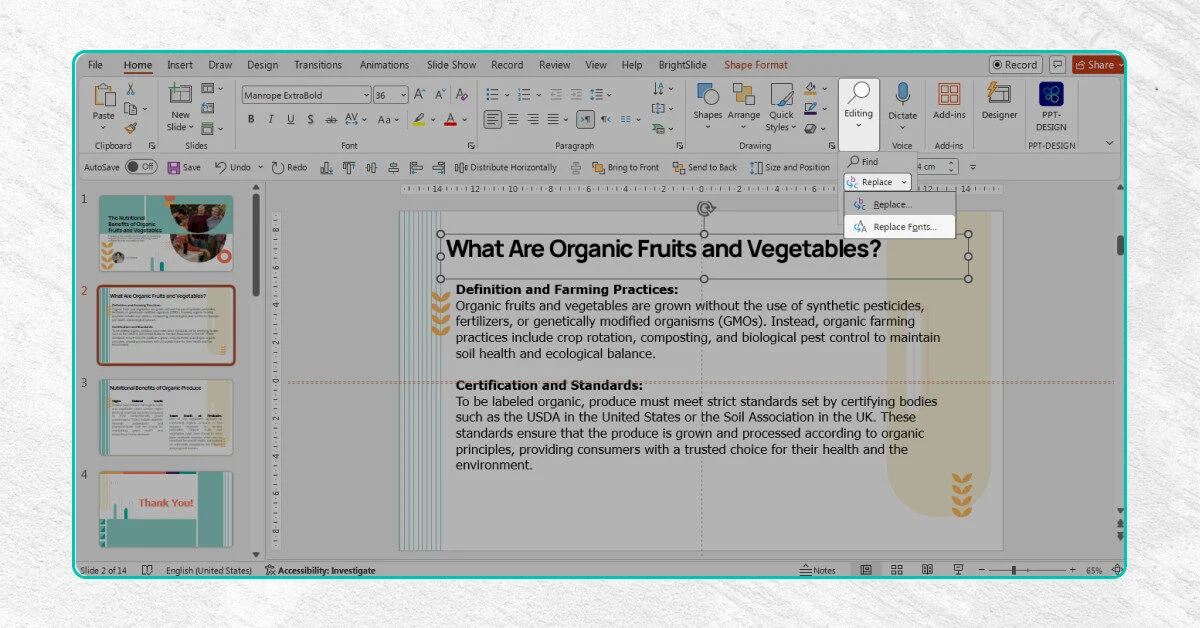
01. Go to “Editing” from the dropdown menu select “Replace > Replace Fonts”
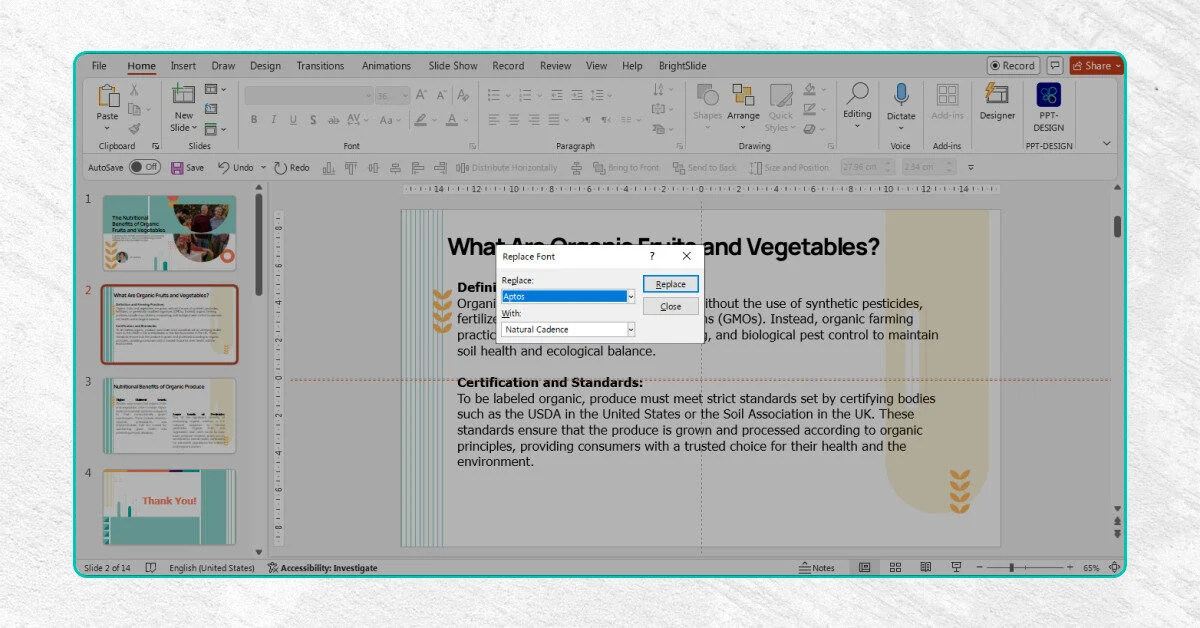
02. Choose the font you want to replace from the dropdown menu, and the one you want to replace it with.