- Your cart is empty.
Slide Master Tips - Fonts Setup

We’ve all been there, 3 hours deep into research and collecting info from different resources or collaborating with different people on a group project only to end up with a presentation filled with mismatched fonts with all sorts of colors and sizes.
Watch the full step-by-step video tutorial below
Here’s how to easily setup fonts in your Slide Master to globally edit and unify all fonts throughout your presentation!
01. Go to “View > Slide Master”

02. Click on “Fonts > Customize Fonts”
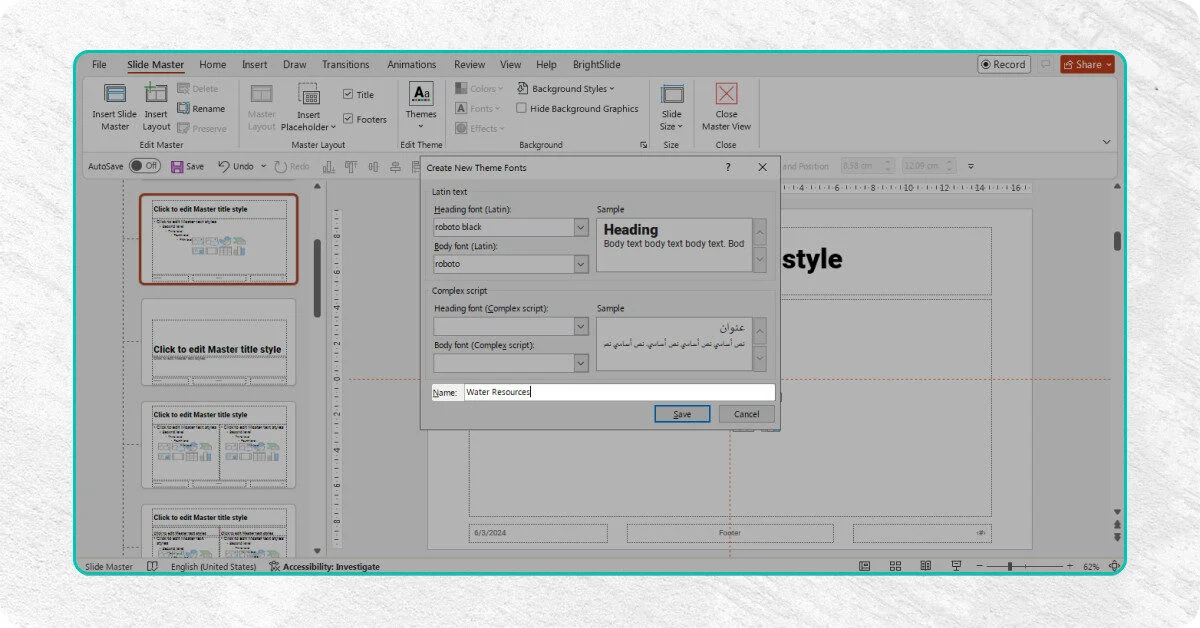
03. Choose “Heading Font” and “Body Font” from the dropdown menu
04. Name your “Theme Font” to save and apply to other files as well.