- Your cart is empty.
Custom Color Overlay in PowerPoint

Have you tried adding a color overlay to your image placeholder but couldn’t get it to work? In this quick guide, you’ll learn how to create a color (or gradient) overlay using Slide Master in just a few simple steps.
Watch the full step-by-step video tutorial below
Here’s how you can create a color overlay for your image placeholder in a few simple steps.
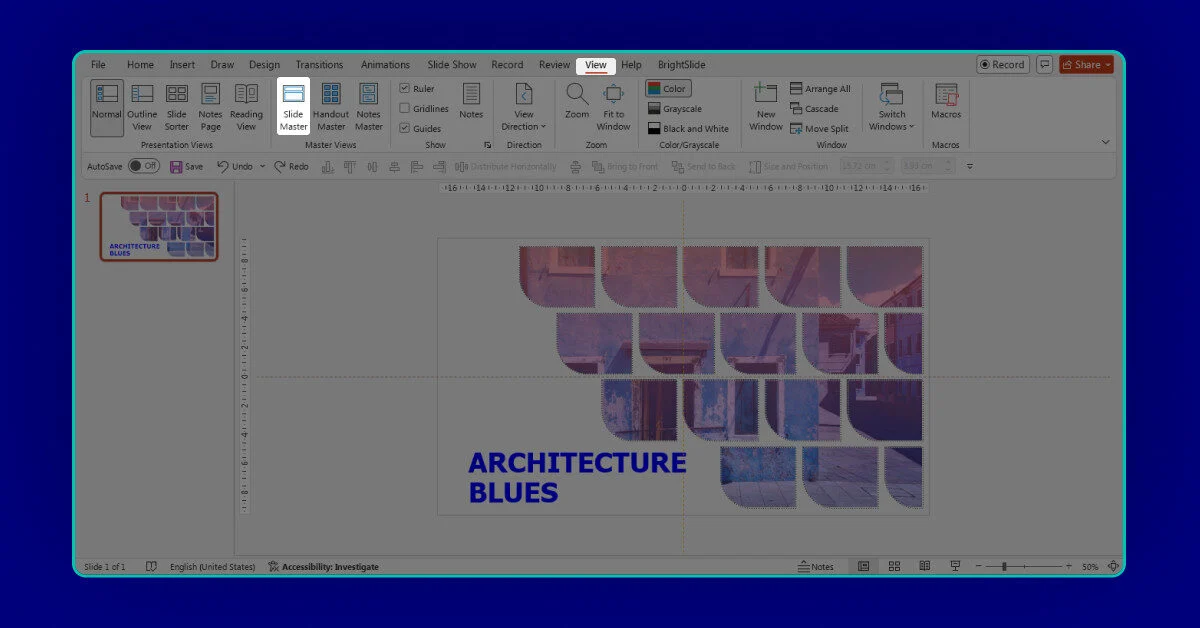
01. Open Slide Master
Go to View → Slide Master to edit the master layout.
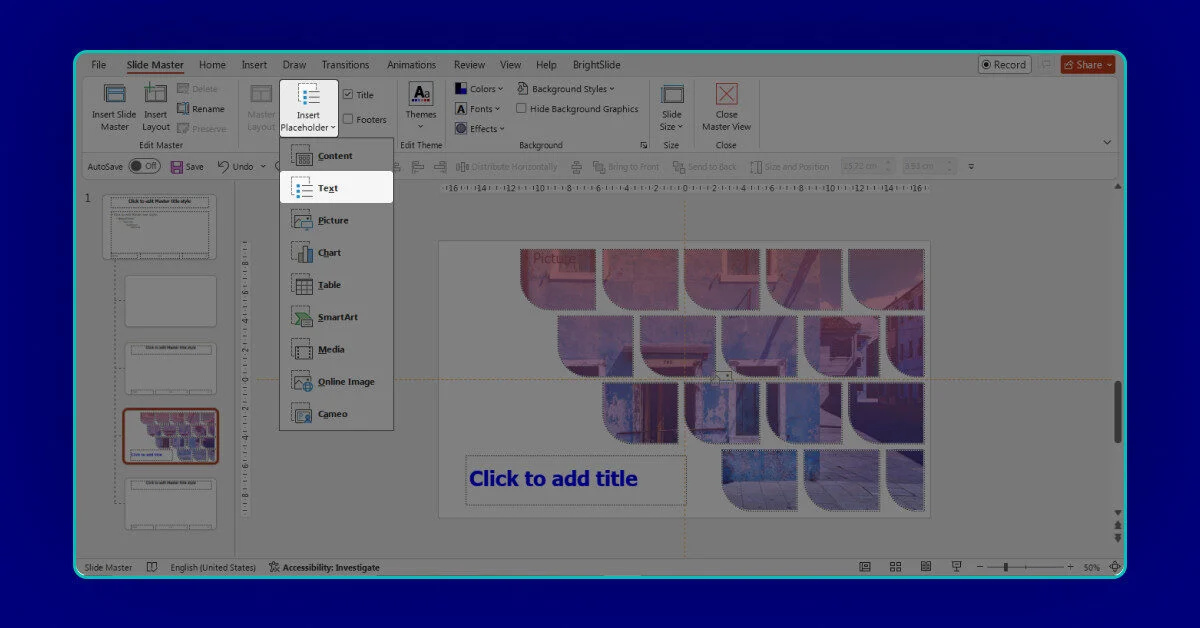
02. Insert a Text Placeholder
go to “Insert placeholder > Text”
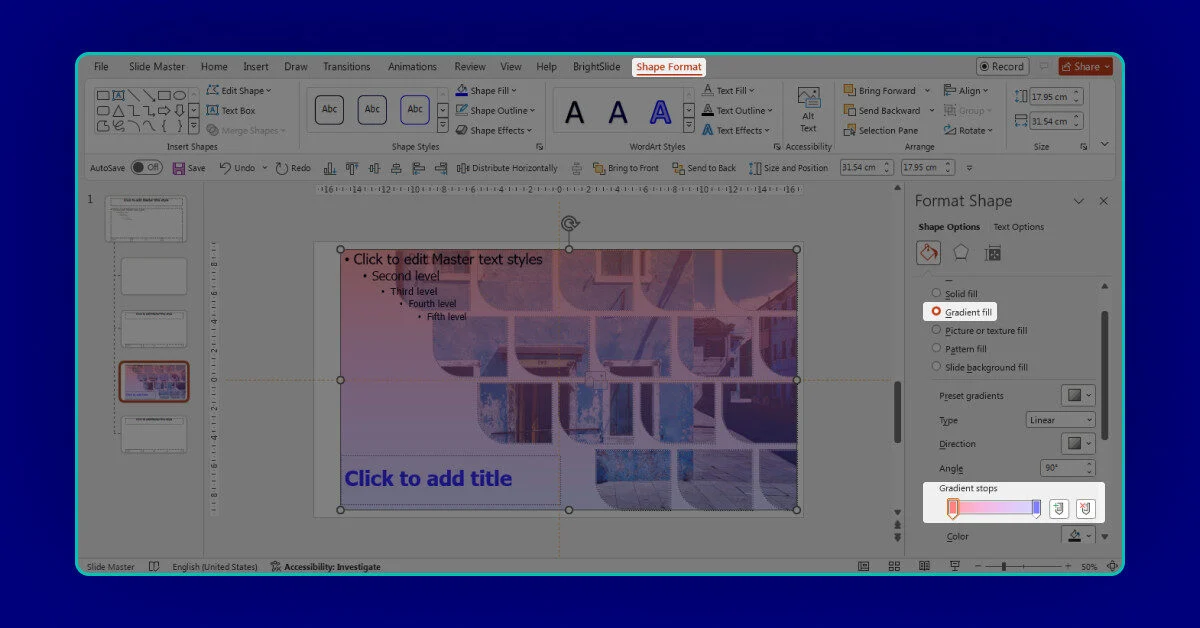
03. Create the Overlay Shape
Draw a rectangle and change the color to a gradient fill to create the overlay effect.
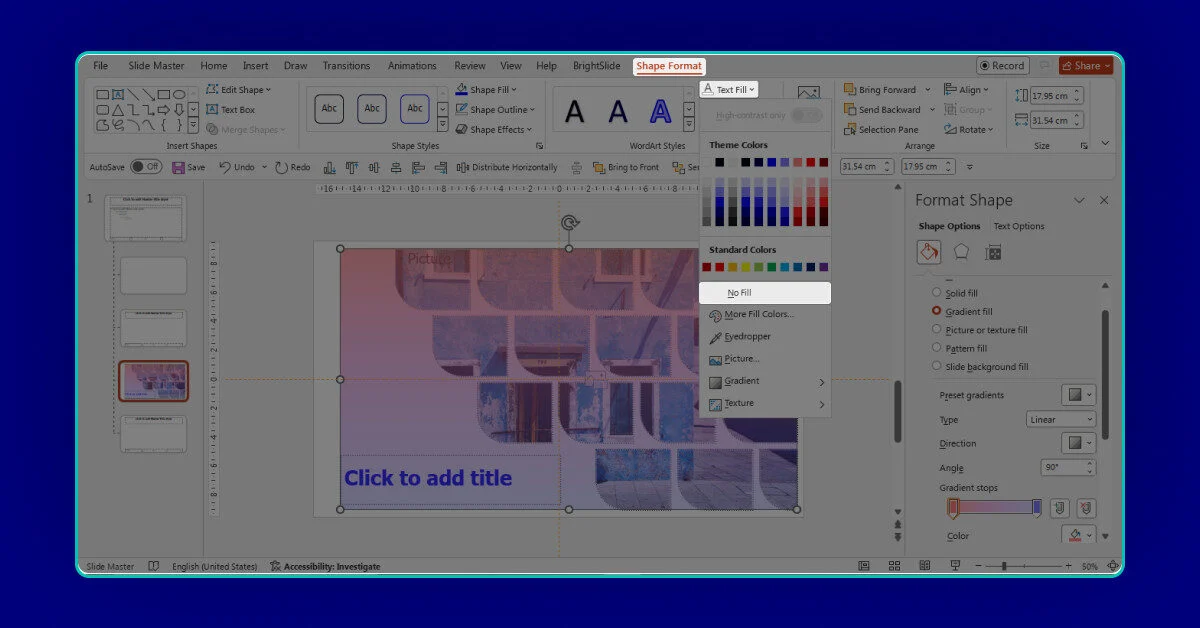
04. Remove Text Formatting
Go to Shape Format → Text Fill and set it to No Fill, then remove any bullet points.

05. Merge the Shapes
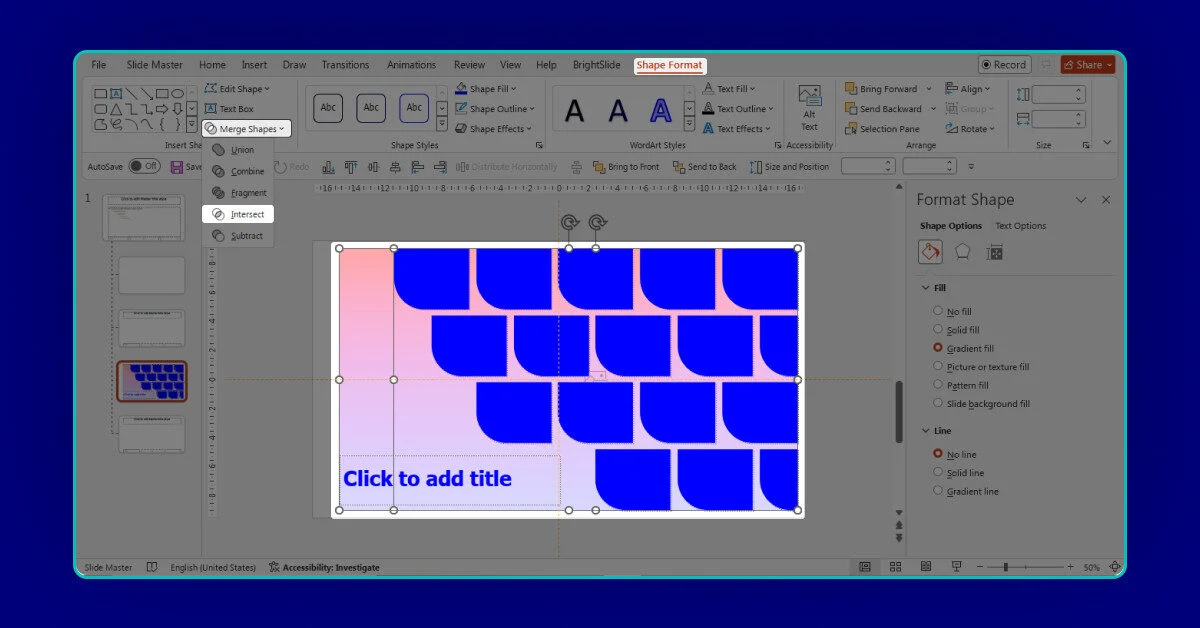
Select both the text placeholder and the overlay shape, then go to
Shape Format → Merge Shapes → Intersect.